Friday, September 22, 2023

Add Consecutive Numbers Excel VBA Macro

In this post we see how to add consecutive numbers to cells in the Excel worksheet using VBA macros. We review two simple options: 1. Using an classic programming For loop, and 2. Using the AutoFill function (a method of the Range object). Using AutoFill requires to add the first 2 numbers to set the sequence of the following numbers (option 2a), or adding just one number and choosing to auto fill with a series (option 2b).


Tuesday, August 22, 2023

Insert All Pictures In Folder Excel VBA Macro

In a previous post, we saw how to insert a picture from the web in Excel: Insert Picture From Web URL. We can insert a local picture using the same method, just replacing the URL with the file name and drive path where is located. In this post, we see how to insert all the pictures in a given folder into Excel using VBA macros. The macro inserts the pictures in a given cell or range and resizes them accordingly. We can also decide whether to insert the source information or just make an independent copy of the pictures.


Wednesday, July 26, 2023

Clear Cells Based On Value Excel VBA Macro

There are several ways to clear cells based on cell value with Excel VBA. The easiest, and probably also most efficient way to do it is using the Replace method of the Range object, which can replace the target value with an empty string in a given range or entire worksheet. Another possibility is looping through all cells in a range and setting a condition to clear the contents for a target value. This gets slower the bigger the range. On the other hand, this method allows not only to clear values, but also to change formatting or delete the target cell, for example. It also allows to set various conditions, instead of a single value.


Wednesday, June 28, 2023

Add Conditional Formatting To Unique Values Excel VBA Macro

Conditional formatting is a feature of Microsoft Excel that allows highlighting certain values to easily identify those cells. Excel offers various options for numerical values (greater or less than, between, top 10, data bars, color scales, icons, etc.), but there are less options for text. In both cases, we can set rules manually to apply formatting based on a given condition. This post shows how to apply rules automatically using Excel VBA macros. The macro specifically applies formatting to a column based on unique cell values. As a result, each unique cell value is highlighted in the same color.


Thursday, May 18, 2023

Send Multiple Emails From Excel VBA Macro

In a previous post, we have seen how to send an email from Excel (via Outlook) using VBA macros. We can add as many recipients as needed separated by a semi-colon when sending one email. However, if we want to send separate emails to each recipient, we need to loop through the list of recipient emails and send an email to each of them individually. In this post, we see how to send multiple emails to recipients listed in a worksheet in Excel. We can choose to send the same or a different subject, body, or attachments to each recipient.

Wednesday, April 26, 2023

Convert Range To HTML Table Excel VBA Macro

In this post we see how to convert a range with data in Excel into an HTML table. We may want to get Excel data as an HTML table for example to add the table to a web page, to send an email with Excel data as a table in the body, or to show the data in a userform, among other things. We can see each separate use case in other posts. In this post, we will only see how to convert a selected range with data into an HTML table.

Friday, March 24, 2023

Export Table To Word Excel VBA Macro

We often copy/paste data, tables, and charts, from Excel to Word documents. In this post, we see how to automate that process with VBA macros. The code below copies a range with data in Excel, and pastes the content as a table in a Word document. The process can repeat or loop to copy various tables. The macro can be leveraged to copy other elements such as charts.

Monday, February 20, 2023

Add Button To Cell Right-Click Menu Excel VBA Macro

The cell right-click menu in Excel, also known as context menu, is a fast way to see and change properties of a cell or range in the worksheet. We can use VBA macros to add controls to that menu such as buttons that call a certain macro or run a function. This macro example targets the CommandBar object in order to add a button to the cell menu that runs a particular macro. We can add more buttons to the menu, or other controls such as sub-menus (popup control). Buttons can have a custom icon using the property FaceId. Find the list of icons available in Microsoft Office in this other page: Command Bar Button FaceId


Friday, January 20, 2023

Insert Pictures From Google Drive Excel VBA Macro UPDATE!

This is an UPDATE to a previous post where we saw how to insert pictures from Google Drive in Excel using VBA macros. The method explained before needs a slight change to continue working. That change consists of inserting the picture from Google Drive into a shape previously added to the Excel worksheet, instead of adding the picture directly to a range or cell. The macro requires access to the same Google Drive export view URL link including the picture sharing ID described in the previous article.


Sunday, December 4, 2022

Import Specific Cells From Google Sheets Excel VBA Macro

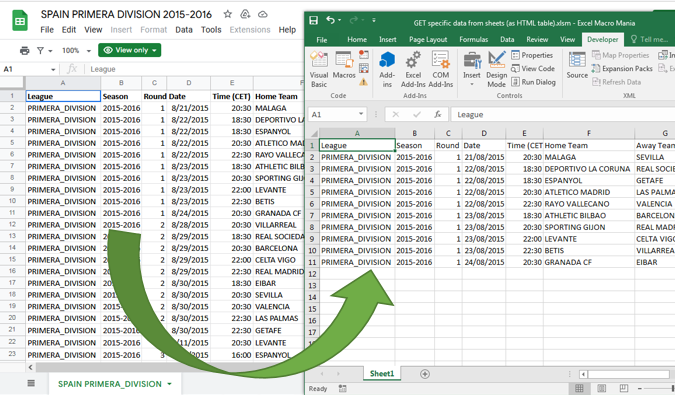
In a previous post we learnt to import data from Google Sheets using a web query in Excel (Import Data From Google Sheets). We can actually create a web query in Excel either manually or with a simple VBA macro. In this post we see another method to import data from Google Sheets that allows getting specific rows, columns, and cells or values depending on certain criteria. In this other method, we send a HTTP request to the Google spreadsheet URL to get the data, and then we loop through the HTML response table to extract the values of interest according to a chosen criterion.


Saturday, November 12, 2022

Unhide All Sheets And Cells Excel VBA Macro

In this post we see how to unhide all sheets and cells in Excel using VBA macros. The macro loops through each worksheet in the workbook to make any hidden or very hidden worksheet visible. At the same time and while in the loop, it also unhides all rows and columns, which subsequently unhides all the cells in that worksheet.


Friday, October 28, 2022

Separate Words and Numbers In Cell Excel VBA Macro

In this post we learn to separate words and numbers within cells in Excel using VBA macros. The macro splits the value in a cell into parts separated by a space (parts can be letters, words, numbers, etc). We can easily adapt the macro to separate the value by other character (a comma, a semi-colon, etc). In this particular example, we will get the keyword in that cell in one column, a number (if any) in another column, and a date (if any) in a third column.  The keyword can be based on a reference value or list of values, but in this case, we will just get the longest word in the sentence, assuming that’s the keyword in that sentence. If there is more than one number (or more than one date), the macro gets the last one. That can be easily changed as needed to get a number or date in a particular position.


Thursday, October 6, 2022

Delete Rows Based On Criteria Excel VBA Macro

In this post we see how to delete rows based on given criteria in Excel using VBA macros. The macro loops through each row with content in the worksheet, and checks if certain criteria for one or more fields is met to delete the row. The criteria can be any value along with the relational operators of the If statement. For example, that could be when the value is below a certain price, or when the profit is above a certain margin. It can also check for specific text, a string of certain length, etc. In the below example, we delete rows for products with a volume below 700 ml or price above 1000 (of the given currency) in the dataset.


Saturday, September 24, 2022

Upload Data To Google Sheets Excel VBA Macro

In this post we learn how to upload or export data from Excel to Google Sheets using VBA macros. The macro sends a HTTP request to POST the data through a Google Form into the Google spreadsheet. For that reason, we need to add the Microsoft XML 6.0 library to the VBA project. Another thing we need to do is to link the recipient Google spreadsheet to a Google Form, which needs to have as many fields as data columns to be exported from Excel. Additional details about the Google Form response URL can be found in this other article (Excel Data Export To Google Sheets).


Tuesday, September 6, 2022

Consolidate Filtered Data From Multiple Sheets Excel VBA Macro

In this post we see how to consolidate filtered data from multiple sheets into separate sheets for each unique entry using Excel VBA macros. The macro loops through each worksheet and filters each unique entry in column A, then adds a new sheet for each unique entry to copy/paste the data. It is a modification of a previous macro (Copy Filtered Data To New Sheets), that allows to combine data from various sheets.


Saturday, August 20, 2022

Combine All Workbooks In Folder Excel VBA Macro

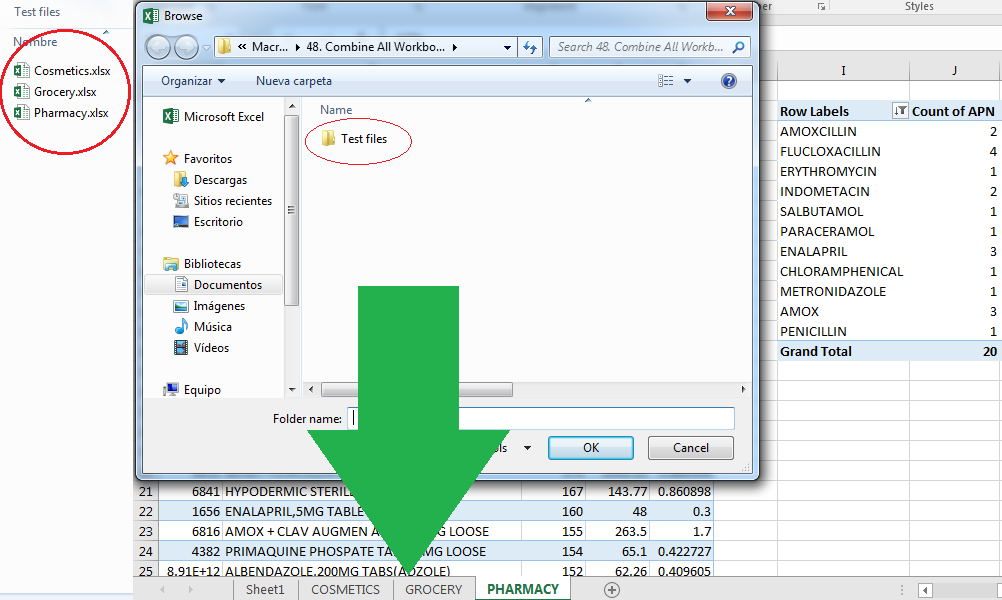
In this post we learn how to combine all the Excel files in a given folder using VBA macros. The macro triggers a dialog box to select a folder from the local drive, and then loops through the workbooks in that folder to copy the contents to the recipient workbook. That includes all the worksheets in each of the workbooks within the target folder. Use the code below to combine all Excel files in a folder into one single workbook.


Sunday, July 24, 2022

Copy Columns To Separate Sheets Excel VBA Macro

In this post we see how to copy each column with data to a separate worksheet in Excel using VBA macros. This is useful when dealing with many columns that need to be moved to other sheets to have a separate record for the data in each column or maybe do some further analysis or report. The macro loops through each column in the reference worksheet and creates a new sheet with the name of the column header, while copying the rest of the data to the first column in that new sheet. The macro also sets a different tab color for each new sheet.


Friday, July 8, 2022

Stack Combine Multiple Columns Excel VBA Macro

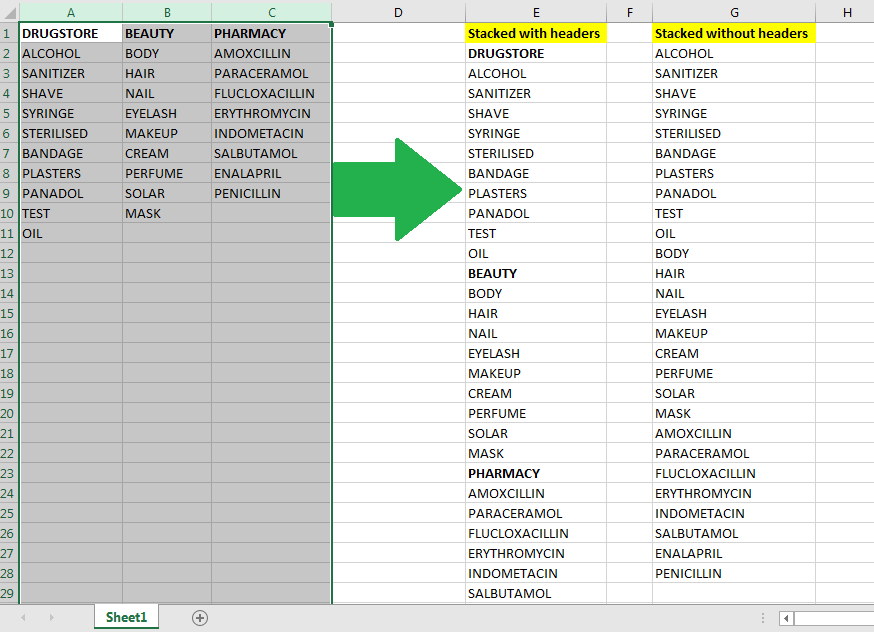
In this post we learn to stack or combine multiple columns into a single column in Excel using VBA macros. Depending on the scenario, that’s something you can probably do without macros, but in some cases, and especially when dealing with a lot of data, is more convenient, faster, and more secure to do it with macros. This is a simple macro to stack the selected columns into one column either in the same or a different worksheet. The macro can easily be adapted to stack the columns skipping the headers by changing just one line of code (see more in the explanation below).


Friday, June 17, 2022

Strikethrough Text In Cell Excel VBA Macro

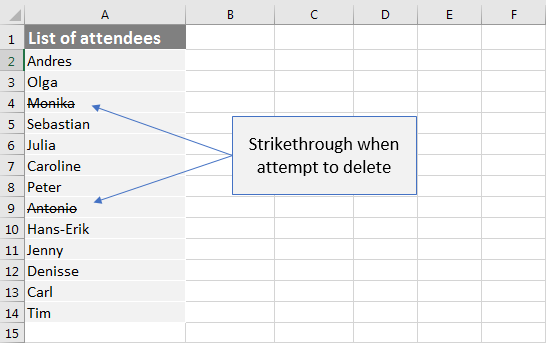
In this post we see how to strikethrough the text in a cell in Excel using VBA macros. The macro example consists of an event procedure triggered when trying to delete the content of a cell. It actually prevents deleting the value of a cell and strikes through the content instead. This somehow protects the content in a worksheet from being deleted, without using worksheet protection, and may be useful when sharing a worksheet with other users.

WARNING: The code below prevents from selecting multiple cells and deleting the value of cells in the sheet where the VBA code is added.


Sunday, May 29, 2022

Connect To API Excel VBA Macro (Part 2)

In the previous post we have seen how to connect to a web API in Excel using VBA macros. In this post we see how to read the API JSON response in Excel and retrieve the data of interest. In this macro example, the data is the list of universities for a given country. The web API is public and does not require any API key to be used. There are different ways to read a JSON file in Excel. We will use a simple method of string manipulation to get the name of each university for a given country. 

Popular Posts